
How to share access to your Meta Ads account
-
Step 1: Log in to Your Meta Business Suite
Make sure you're logged into your Facebook account and go to Meta Business Suite.
-
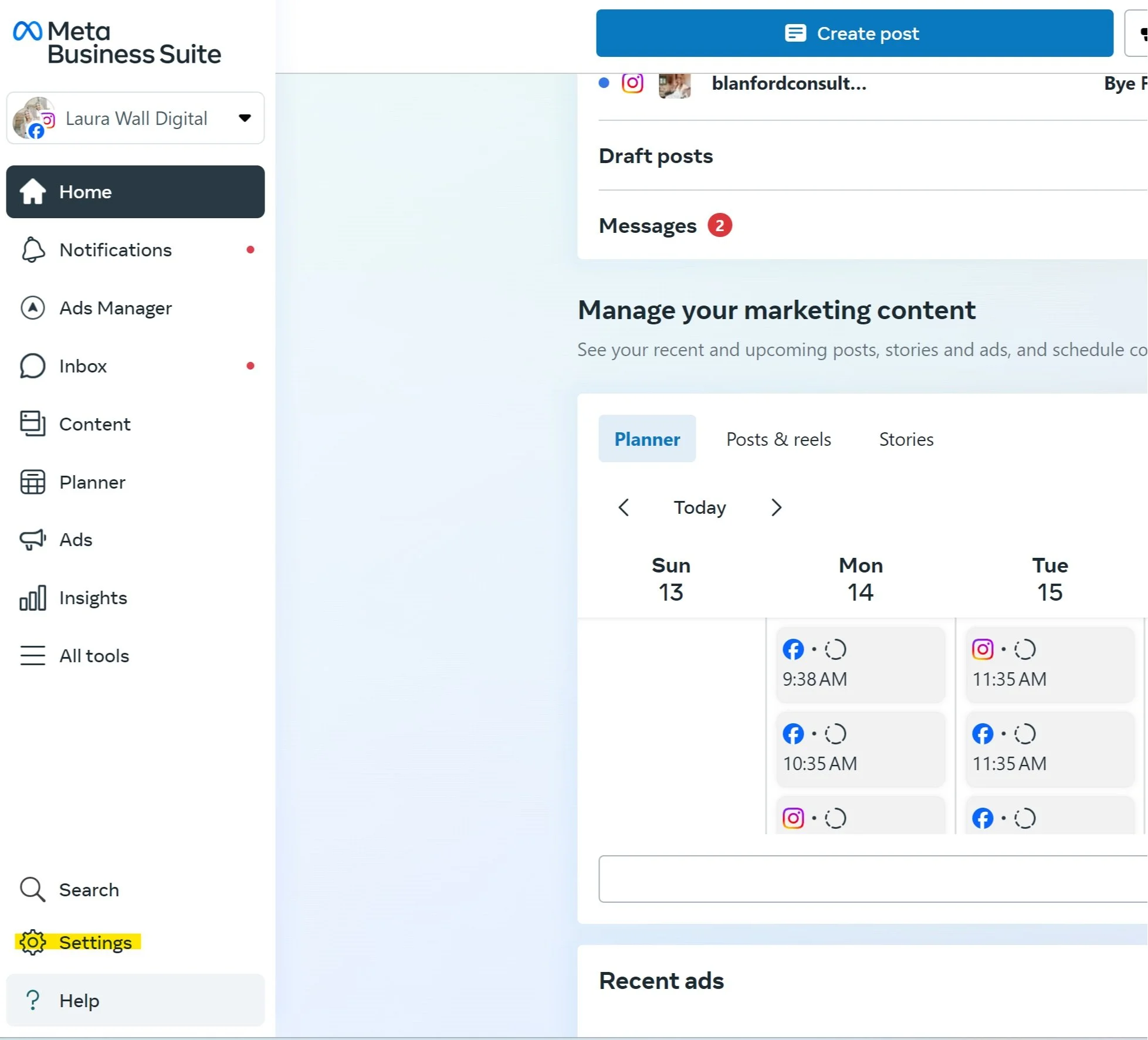
Step 2: Open Business Settings
Once you’re in the Business Suite, click on Settings in the lower-left corner.
-
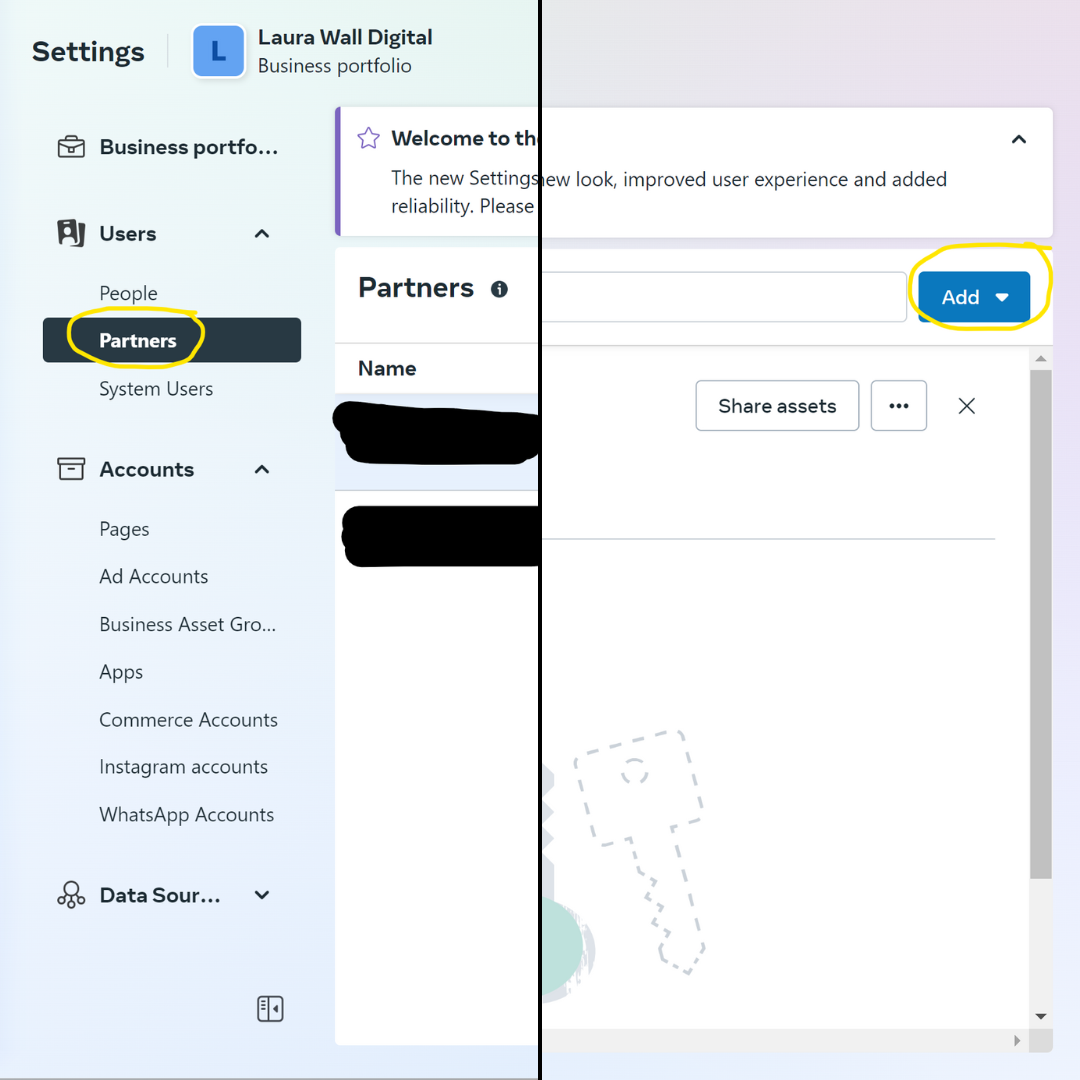
Step 3: Add a Partner
In the left-hand menu, click on Users and then select Partners.
Click on the Add button in the top-right corner. -
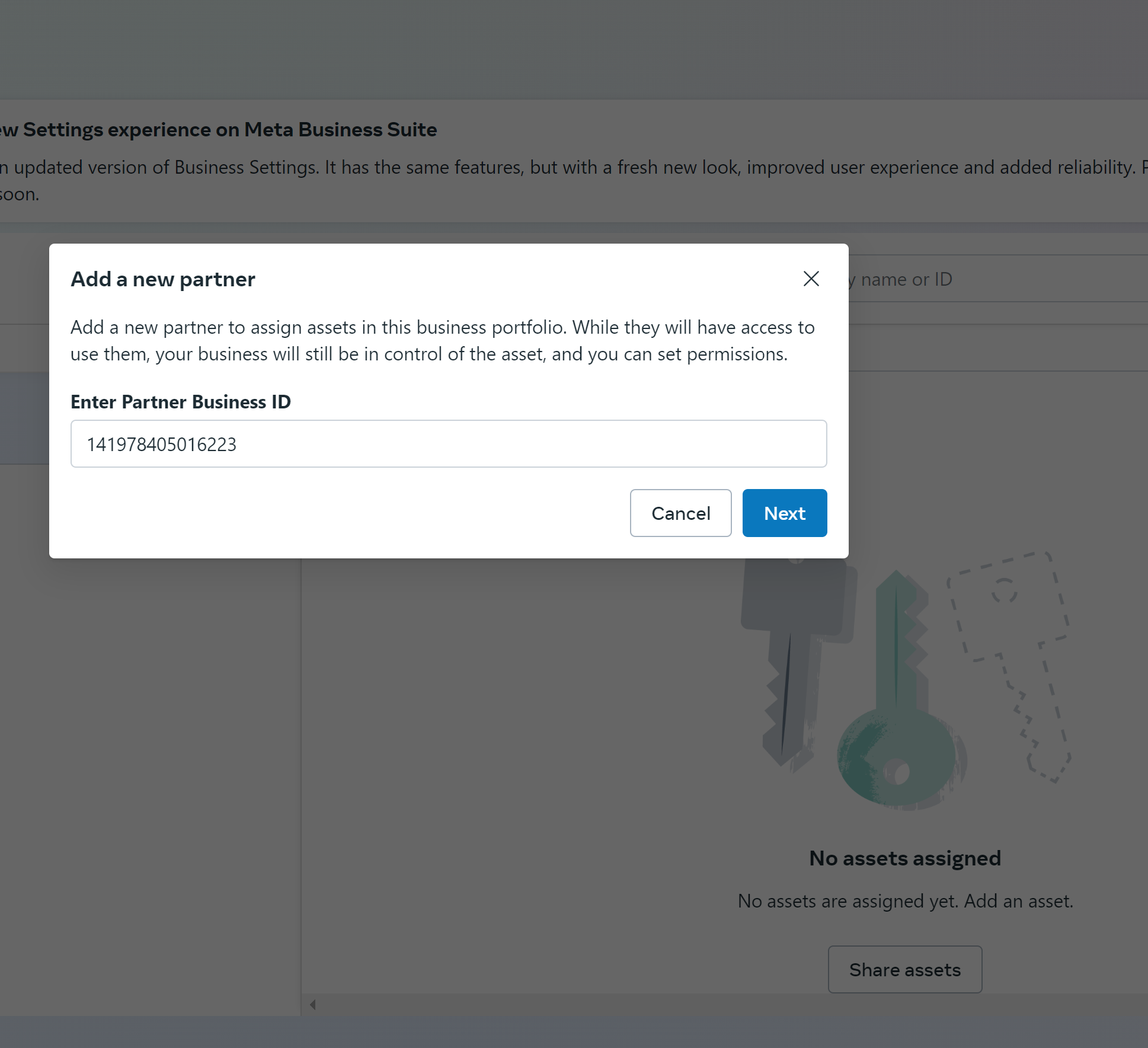
Step 4: Enter My Partner ID
In the pop-up window, select give a partner access to your assets. Then enter my Partner ID: 141978405016223
-

Step 5: Assign Ad Accounts
After adding me as a partner, I’d need access to your ad account, Pixel, Facebook Page and Instagram account.
-
Step 6: Confirm the Invitation
Click Invite to give me access. You’re all set!
How to share access to your Meta Ads account
-
Step 1: Log in to Your Meta Business Suite
Make sure you're logged into your Facebook account and go to Meta Business Suite.
-
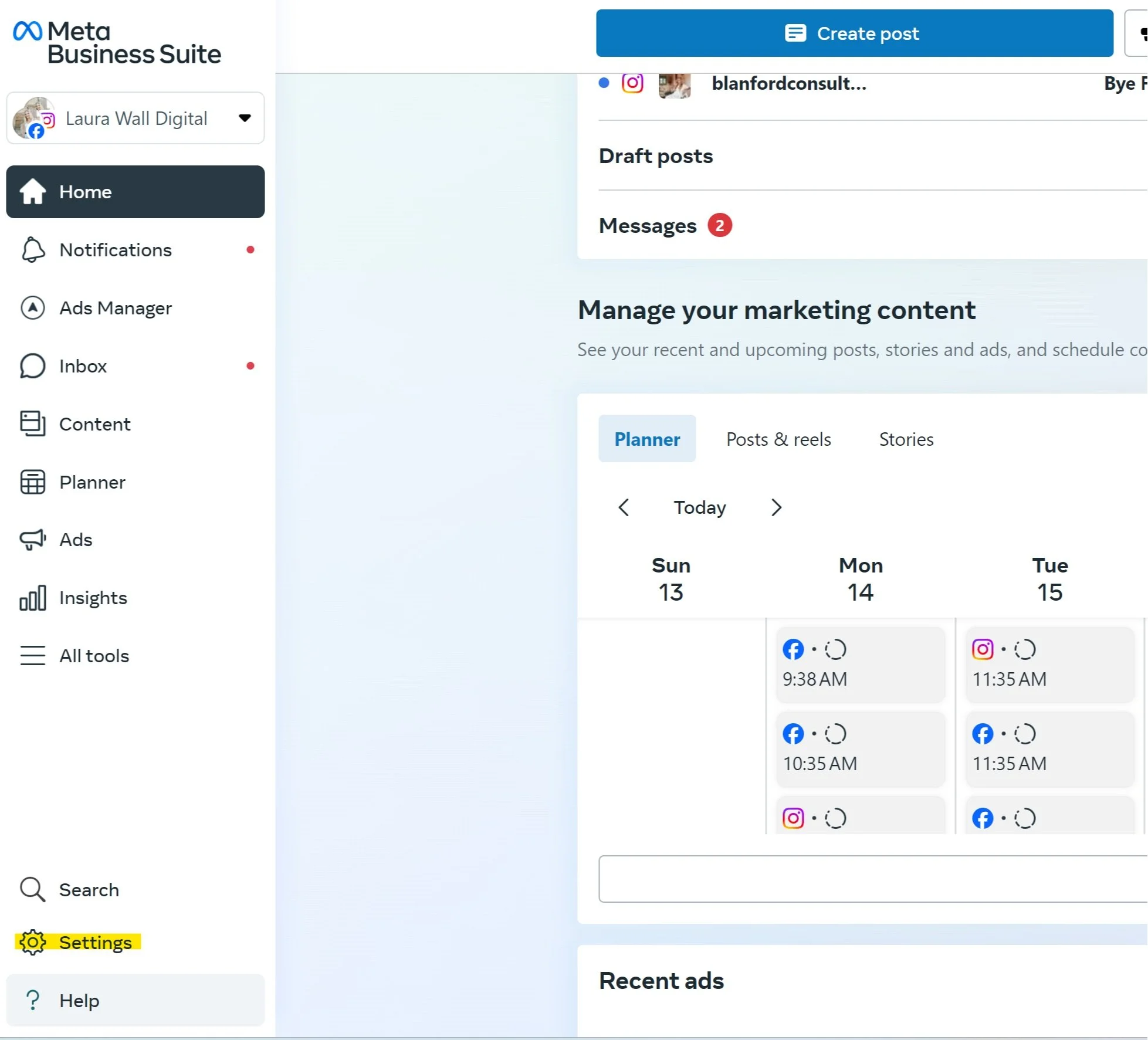
Step 2: Open Business Settings
Once you’re in the Business Suite, click on Settings in the lower-left corner.
-
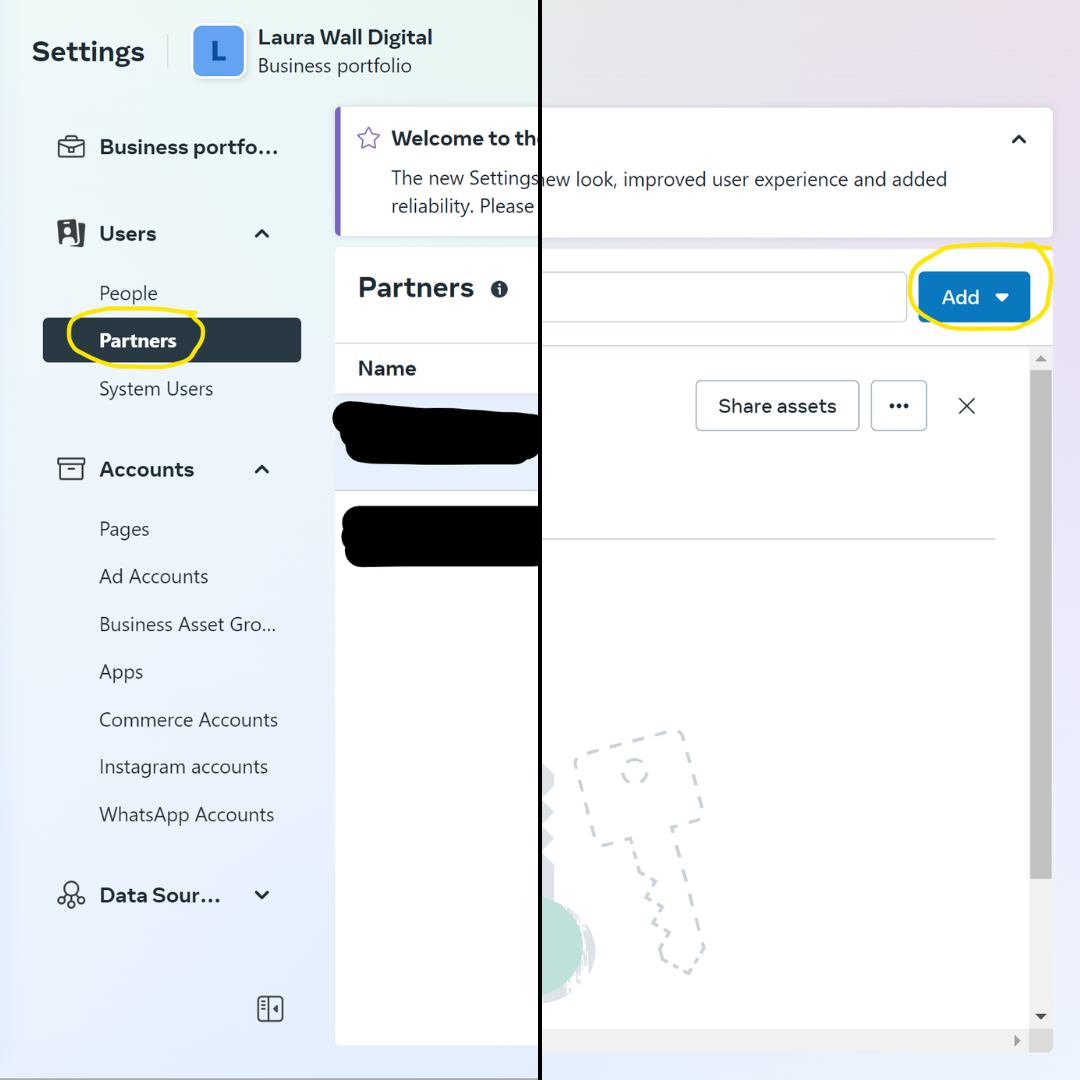
Step 3: Add a Partner
In the left-hand menu, click on Users and then select Partners.
Click on the Add button in the top-right corner. -
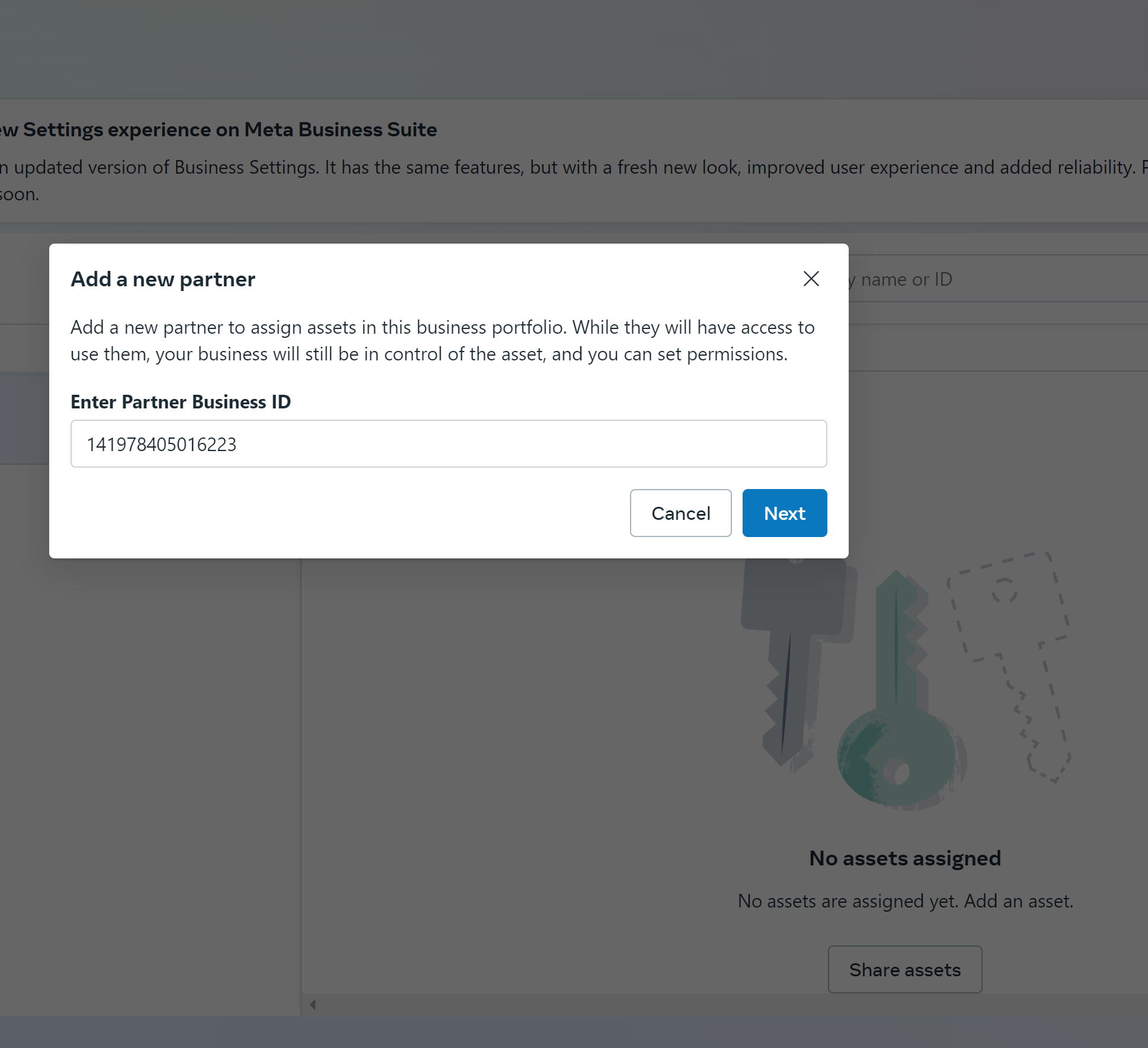
Step 4: Enter My Partner ID
In the pop-up window, select give a partner access to your assets. Then enter my Partner ID: 141978405016223
-

Step 5: Assign Ad Accounts
After adding me as a partner, I’d need access to your ad account, Pixel, Facebook Page and Instagram account.
-
Step 6: Confirm the Invitation
Click Invite to give me access. You’re all set!